
Algolia is a search platform that helps you add fast and relevant search capabilities to your app. It makes it easy to find and explore data quickly.
How does the integration work?
By integrating Algolia with FleekDash, you can use Algolia's search features directly in your FleekDash database. This lets you leverage Algolia’s comprehensive search capabilities with your FleekDash backend.
How to implement
To implement the Algolia integration, follow these simple steps:
Step 1: Set up an Algolia account
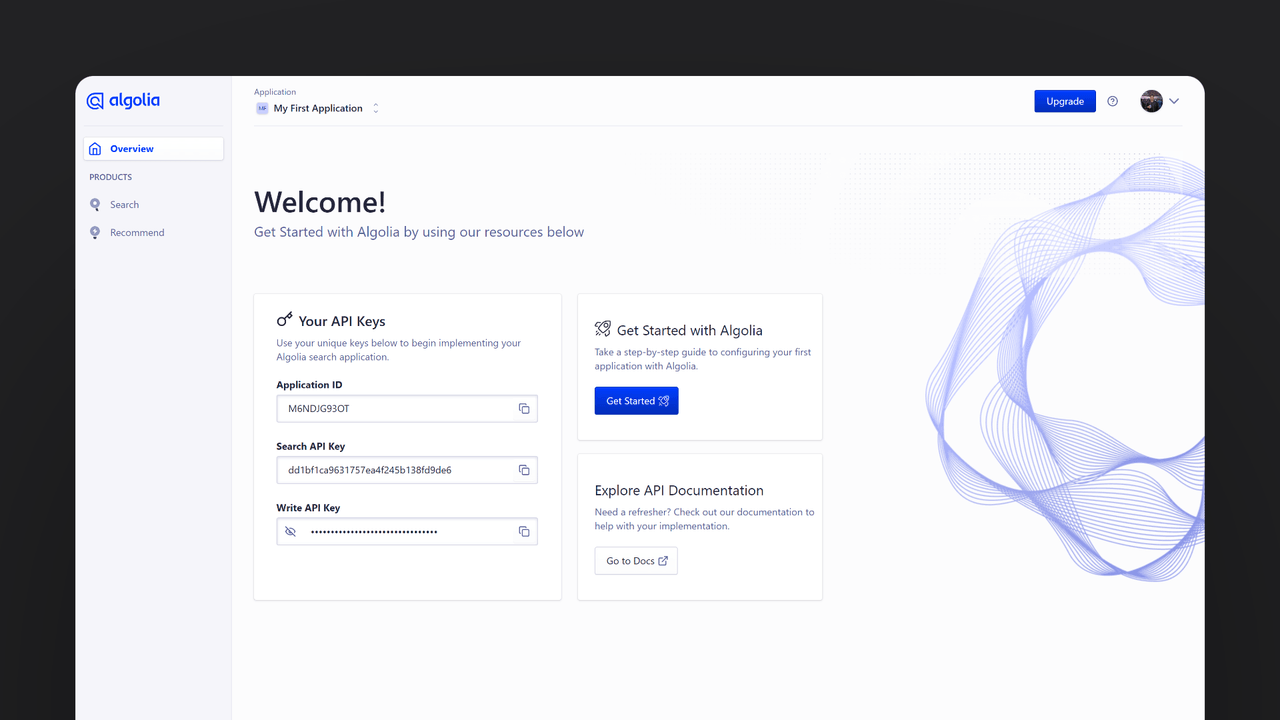
First, sign up on Algolia and create a new application. Save the Application ID, Search API Key, and Write API Key for further usage.

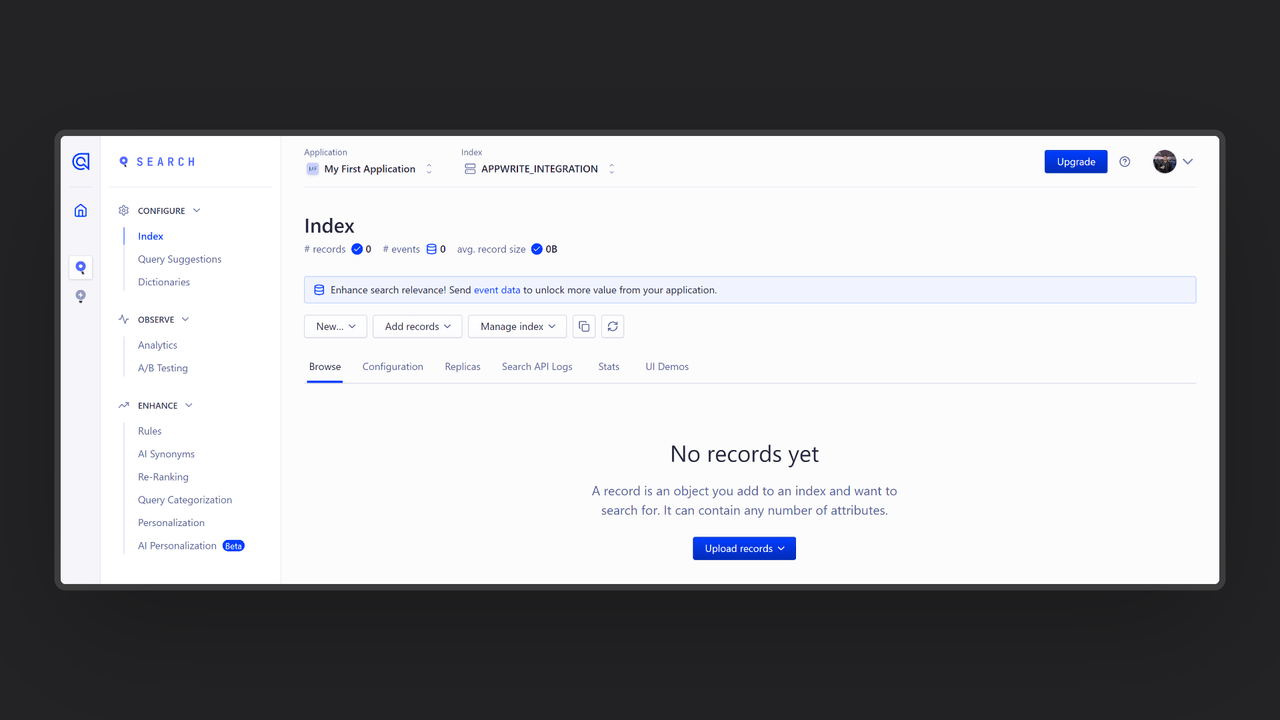
Then, click on the Search page from the left sidebar and create a new Index to store your searchable data. Save your Index ID for further usage.

Step 2: Create the FleekDash Function
For this step, you must create an account on FleekDash Cloud or self-host FleekDash if you haven’t already. In case you decide to self-host FleekDash, there are additional setup steps to use FleekDash Function templates. Additionally, for this template, you must have an FleekDash Database and Collection filled with data in advance.
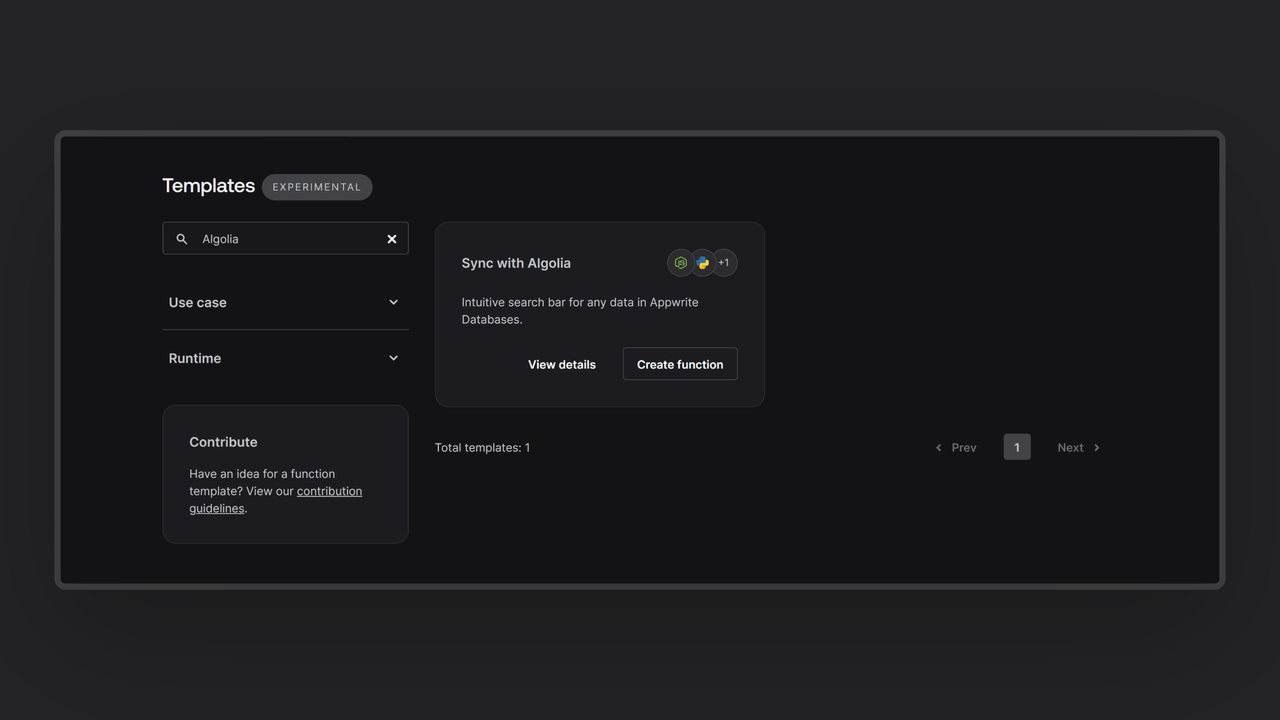
Head over to the FleekDash console, navigate to the Functions page, click the Templates tab, and search for the Algolia function template.

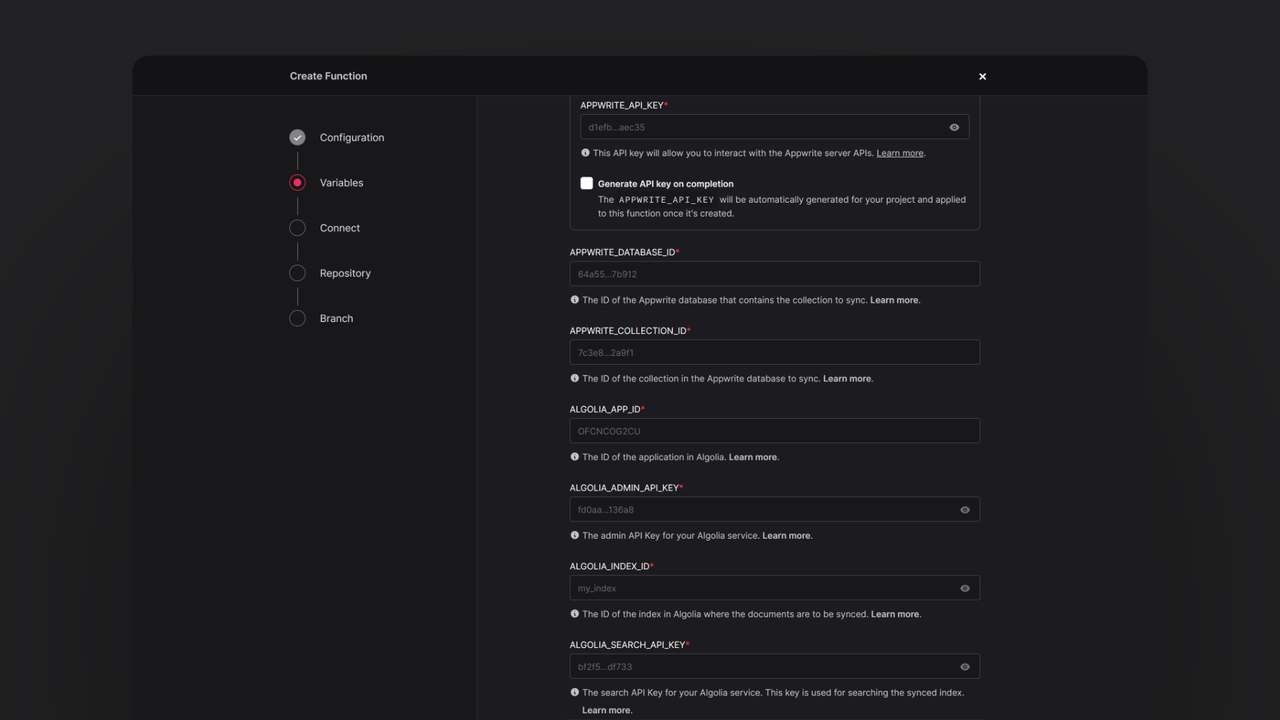
During the setup process, click on the checkbox to create an FleekDash API key on completion and add the FleekDash Database ID and Collection ID for the data you want to index and search as well as the Algolia application ID, search API key, write API key (under Admin API Key), and index ID in the Variables step. If you are self-hosting FleekDash, click on the optional variables dropdown and update the FleekDash endpoint to your instance’s publicly accessible endpoint.

Then, create a new repository with the default branch and root directory settings. You can edit this repository later to update the function logic.
Step 3: Test the function
Once all the steps are complete, it is time to test the function! Before we go further, visit the Domains tab on the Functions page and copy the domain URL to test the function.
Send a POST (HTTP) Request to the function URL to index the FleekDash Collection in Algolia.
curl -XPOST https://DEPLOYED_FUNCTION_DOMAIN
In case you have a large collection of data and your function executions timeout, you can head to the Settings tab on the Functions page and increase the function timeout limit from 15 seconds to 900 seconds (maximum).
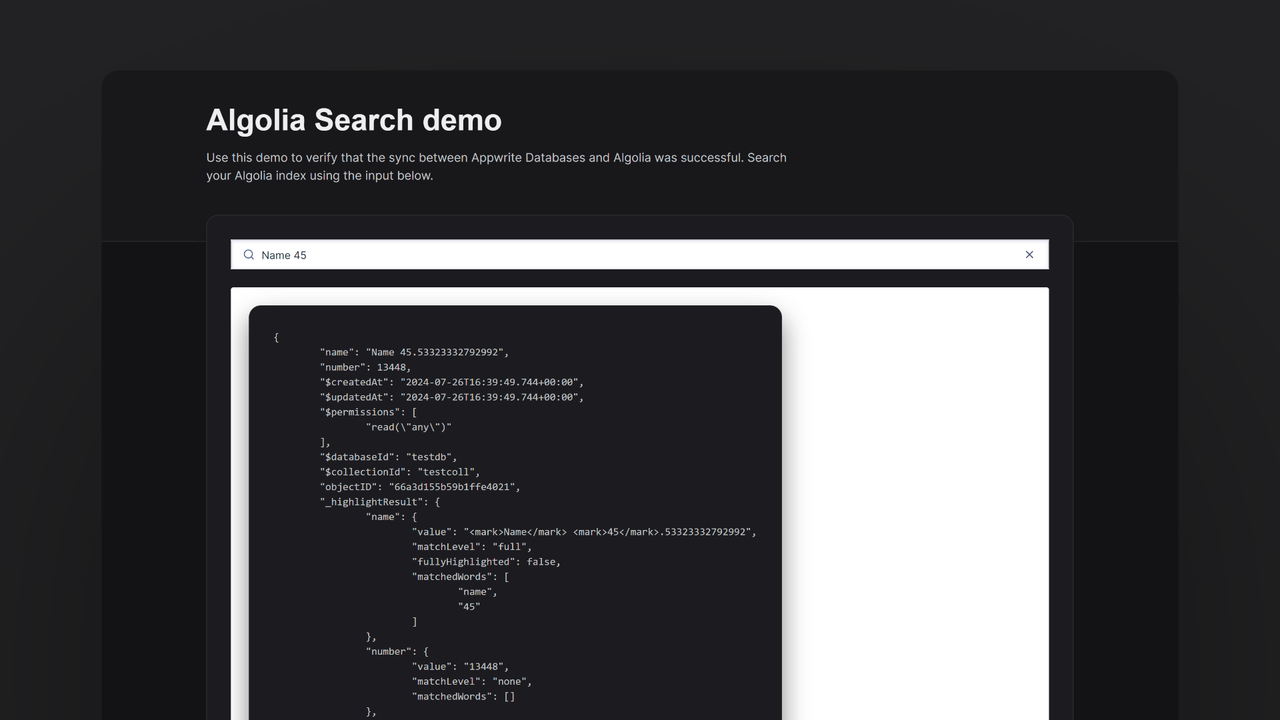
Then, open your function URL in the browser to try the interactive search UI.

Read more about Algolia
If you would like to learn more about Algolia, we have some resources that you should visit: