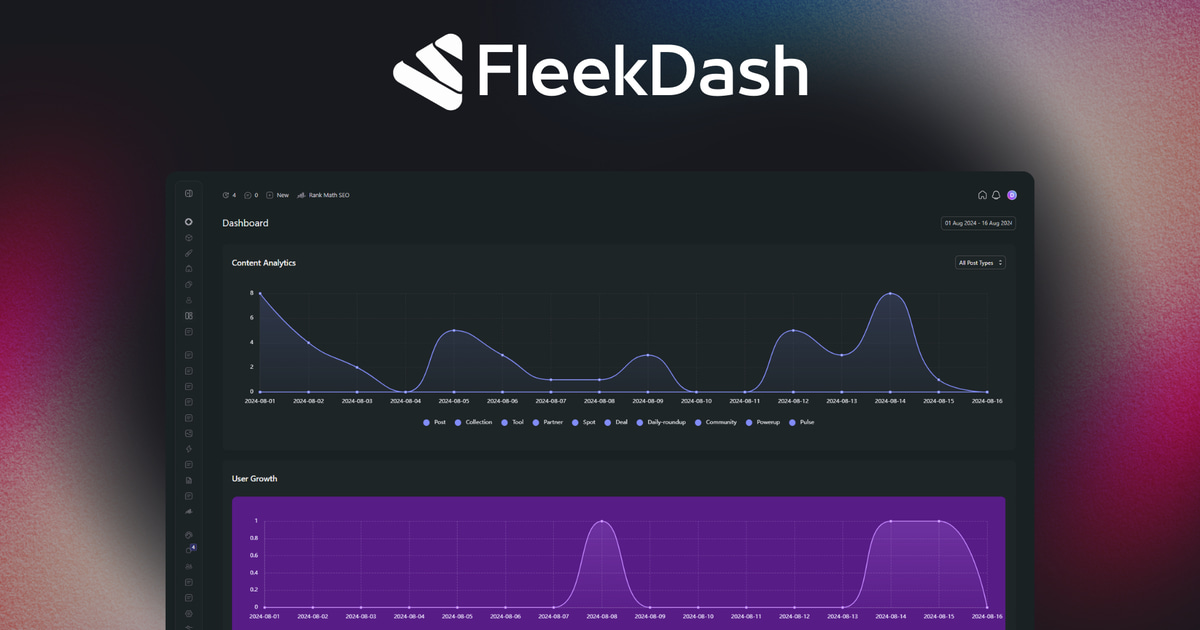

You log into wp-admin and the home screen is a pile of boxes you never asked for. At a Glance. Quick Draft. WordPress Events and News. A WooCommerce panel. A plugin promo. For a site owner that is noisy. For an agency handing a client the keys, it looks unfinished.
Customizing the WordPress dashboard is how you turn that screen (and the rest of the admin) into something people can actually work in. Some of that is built into WordPress. Some of it needs a plugin. This guide covers both, then shows where a restyling plugin stops and a full admin workspace starts.
What customizing the dashboard actually means
People say "customize the WordPress dashboard" and mean four different jobs.
The home screen. The Dashboard menu item: which widgets show, in what order, for which user.
The layout around it. Admin color scheme, the admin bar, which notices stick around.
The menu. What sits in the sidebar, how it is grouped, and who can see each item.
The brand. Logos, login screen, and whether the admin still says "WordPress" when a client logs in.
WordPress gives you the first two out of the box. Menus and white-label need plugins or custom code. If your goal is a branded workspace for clients, you will outgrow Screen Options quickly. That is not a knock on WordPress. Core is built to work for everyone, which means it is not built for one agency's handoff.
Built-in options that already exist
Start here before you buy anything. A lot of "my dashboard is a mess" is solvable with tools WordPress already ships.
Screen Options
Almost every admin screen has a Screen Options tab in the top right. Open it.
On the dashboard home, you get a checkbox for each widget. Uncheck it, and that box disappears for your user. On list screens (Posts, Pages, Products), Screen Options also controls which columns appear and how many items load per page.
This is per-user. Hiding "WordPress Events and News" on your account does not hide it for the editor you just invited. That is useful when you want your own view. It is a problem when you want every client role to see the same clean home screen.
Removing dashboard widgets
For a site-wide cleanup, Screen Options is not enough. Developers hook wp_dashboard_setup and call remove_meta_box for the boxes they do not want. Typical targets are dashboard_primary (the news feed), dashboard_quick_press, and plugin widgets that inject themselves on every install.
That works. It is also code you have to maintain on every site, and it does nothing for users who still need a useful home screen. Empty is cleaner than cluttered. It is not the same as a dashboard that shows the numbers a store owner actually asks about.
If you do not want to write PHP, dashboard customizer plugins let you swap the default widgets for your own text, icons, or HTML. That is the job Ultimate Dashboard is known for: the home screen, not the rest of wp-admin.
Admin color schemes
Each user can pick an Admin Color Scheme under Users → Profile. WordPress ships several: Default, Light, Modern, Blue, Coffee, Ectoplasm, Midnight, Ocean, Sunrise. The change is cosmetic. It does not reorganize menus, hide widgets, or brand the login.
Agencies sometimes pick a scheme that is closer to the client brand and call it done. Clients still see "Howdy", the WordPress logo in the admin bar, and a sidebar full of plugin names. Color is not white-label.
Menu order via code or plugins
Core does not give you a visual menu editor. You can filter custom_menu_order and menu_order in a theme or must-use plugin, or hide items with remove_menu_page. That is fine for a single site you control. It does not scale across twenty client installs, and it is easy to break when a plugin registers a new top-level item.
Plugins exist specifically for this. Admin Menu Editor is the usual pick: drag items, rename labels, set per-role permissions. Adminimize hides menus, meta boxes, and admin bar nodes inside the stock admin. Both keep you in classic wp-admin. They tidy the navigation. They do not replace the workspace around it.
Layouts, menus, widgets, and white-label
Once you are past the built-in toggles, the work splits into four layers.
Layouts. Multiple dashboards, not one home screen. Widgets that show analytics, orders, or shortcuts instead of Quick Draft. Per-role layouts so an editor and a shop manager do not land on the same clutter.
Menus. A builder that reorders, regroups, and hides sidebar items per role. WooCommerce stays in one group. Settings disappear for authors. Clients get a short list of the screens they actually use.
Widgets. Replace At a Glance with the data people need: visitors, orders, content waiting on approval. This is the gap between "I hid the news widget" and "the dashboard is useful".
White-label. Brand the admin and the login (logo, colors, admin theme) so the backend feels like the client's CMS. WordPress core does not do this. You need a plugin.
Site owners often stop at layouts and widgets. Agencies need menus and white-label too, because the admin is part of the deliverable.
Where restyling plugins like UiPress and WP Adminify fit
If you search for a way to customize WordPress dashboard screens, two names show up constantly: UiPress (now sold as uiXpress) and WP Adminify. They are real products. They are also a different category from a full admin workspace.
UiPress is a modern admin theme and UI layer. It restyles wp-admin, ships a menu builder, branding options, global search, and analytics cards, and leaves WordPress workflows in place. If all you want is a visual refresh of the admin and the editor chrome, that is a focused job, and UiPress is built for it.
WP Adminify is a bundle of modules you toggle inside classic wp-admin: menu editor, dark mode, dashboard widgets, media folders, a login customizer, and more. There is a free version on WordPress.org. It is a strong fit when you want a-la-carte tweaks site by site.
Both are restyling or module layers on top of stock wp-admin. That is the honest split. Pick them when you want wp-admin to look better or to hide some of its mess. Pick a workspace when clients should log into one coherent product, not a themed copy of the default admin.
How FleekDash customizes the admin
FleekDash replaces the default WordPress admin with a workspace rather than restyling it. Everything below is already on the features and compare pages.
Dashboards. Custom layouts with widgets, including built-in analytics and growth tracking, so the home screen is a command center instead of leftover meta boxes.
Menu builder. Reorder sidebar items and set per-role visibility, so each client role sees a navigation built for them.
White-label. Brand the admin with the theme editor (admin themes and palettes, separate from the front-end theme) and a custom login for logos, colors, and a custom URL.
Command bar. Fleek Search (Cmd+K) finds content, screens, and actions without digging through menus.
Store views. Dedicated WooCommerce views for orders, products, and customers, not only a restyle of the default screens.
Multisite. A Multisite Manager for the Network Admin if you run networks.
FleekDash only changes the admin area. It does not touch the frontend. Disable it and you are back to stock wp-admin. Agencies use the white-label, menu, and dashboard tools together for client handoff. Solo site owners can turn on just the parts they need. The full list lives on the features page.
Try it on a live site
Reading about Screen Options is useful. Clicking around a real admin is better. The instant demo is a disposable WordPress site with FleekDash already installed. No signup. Nothing on your current site is touched.
Try the live WordPress admin demo
A real, disposable WordPress site with FleekDash installed. No signup. Your current site is not touched.
 Custom dashboards and widgets
- Menu builder with per-role visibility
- White-label admin and login
- Command bar (Cmd+K) built in
If you are comparing a reskin to a workspace, start with that demo, then read the UiPress alternative and WP Adminify alternative pages for the honest split.
This post was written for humans, not for SEO, and reviewed with AI.